

Let's set up your publication
How to set up publication on Cantabook? Here is a step-by-step guide.
Your publication is your home for your writing. It has your own web address, your name, your look, and your readers, who belong to you. Cantabook just gives you the tools to build it. Setting it up takes about ten minutes, and you can change most things later.
Step 1: Sign in
Go to cantabook.com and sign in with your email. We'll send you a 6-digit code, so there's no password to remember. Enter the code and you're in.
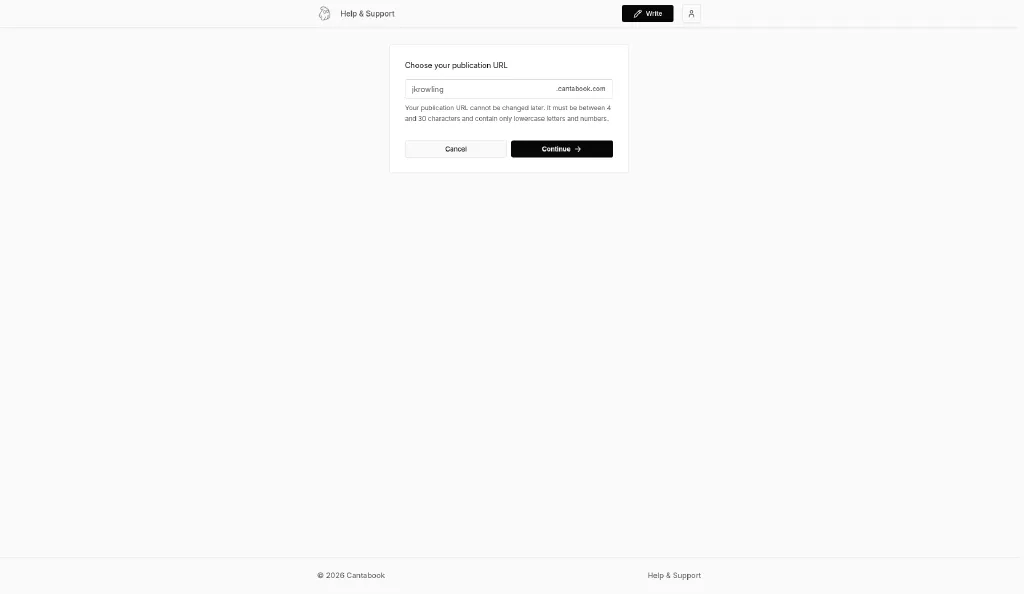
Step 2: Choose your publication URL
This is your web address, for example yourname.cantabook.com. Readers will use it to find you, so pick something simple and easy to say out loud.
Type it in and click Continue.
Confirm: what the next screen asks for, such as the publication name, before the publication is created
Step 3: Set up your profile
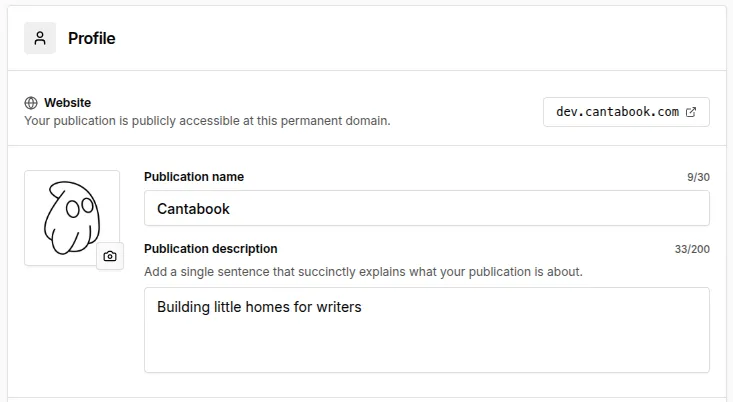
Click Settings at the top of your publication page. Under Profile:
Step 4: Add your social links
Point readers to where else they can find you. You can add your Website, YouTube, Facebook, Instagram, Threads, and X.
Paste a full link or just your handle, like @yourname. Only the links you fill in appear on your publication.
Step 5: Choose your look
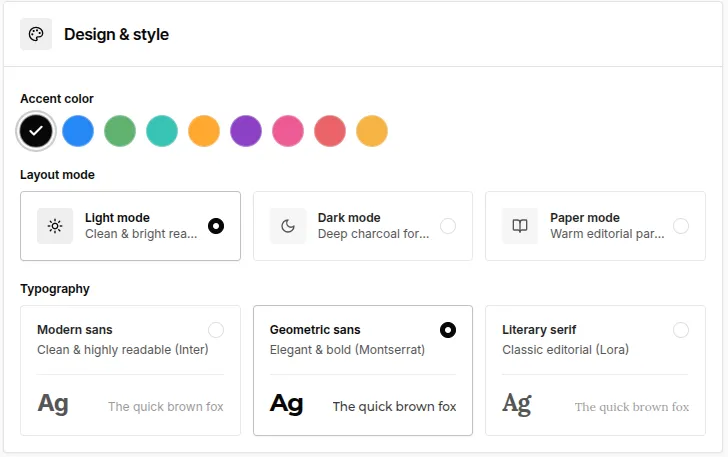
Under Design & style, make your publication feel like yours:
When you're happy, click Save changes.
Step 6: Write your welcome email
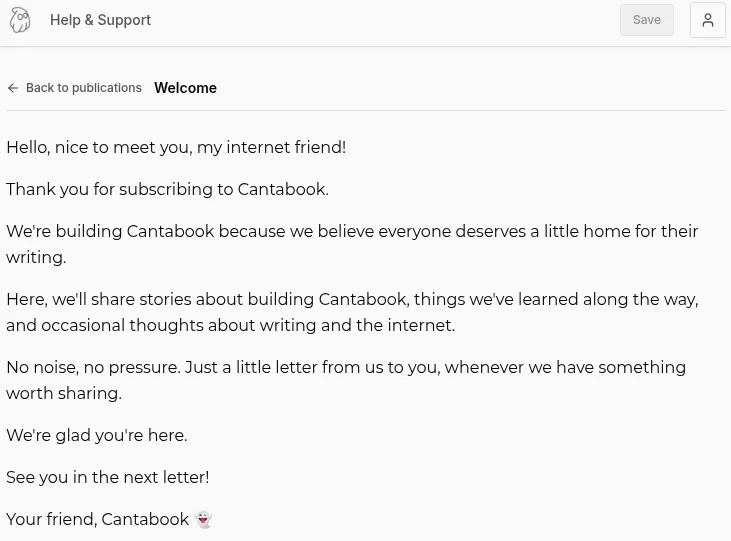
When someone subscribes, they get a welcome email from you. Under Emails, click Edit welcome email to make it your own. Say hello, tell new readers what to expect and how often you'll write, and thank them for being there. You can use headings, links, and images, just like in a post. Click Save when you're done.
Step 7: Publish your first post
Click New post (or Write at the top), give it a title, and start writing. When it's ready, click Continue to add a cover image and subtitle, preview it, then Publish. Your first post is the best introduction to your publication, and it can be as simple as telling readers who you are and why you write.
Step 8: Share your link
Your publication lives at yourname.cantabook.com. Share it with friends, add it to your bio on other sites, and invite people who already enjoy your writing to subscribe. Your readers are yours, and they get your posts straight in their inbox.